
Dylan Ray
31 Dec 2025
How to organize apps on Android phones? An eSIMCard Guide!
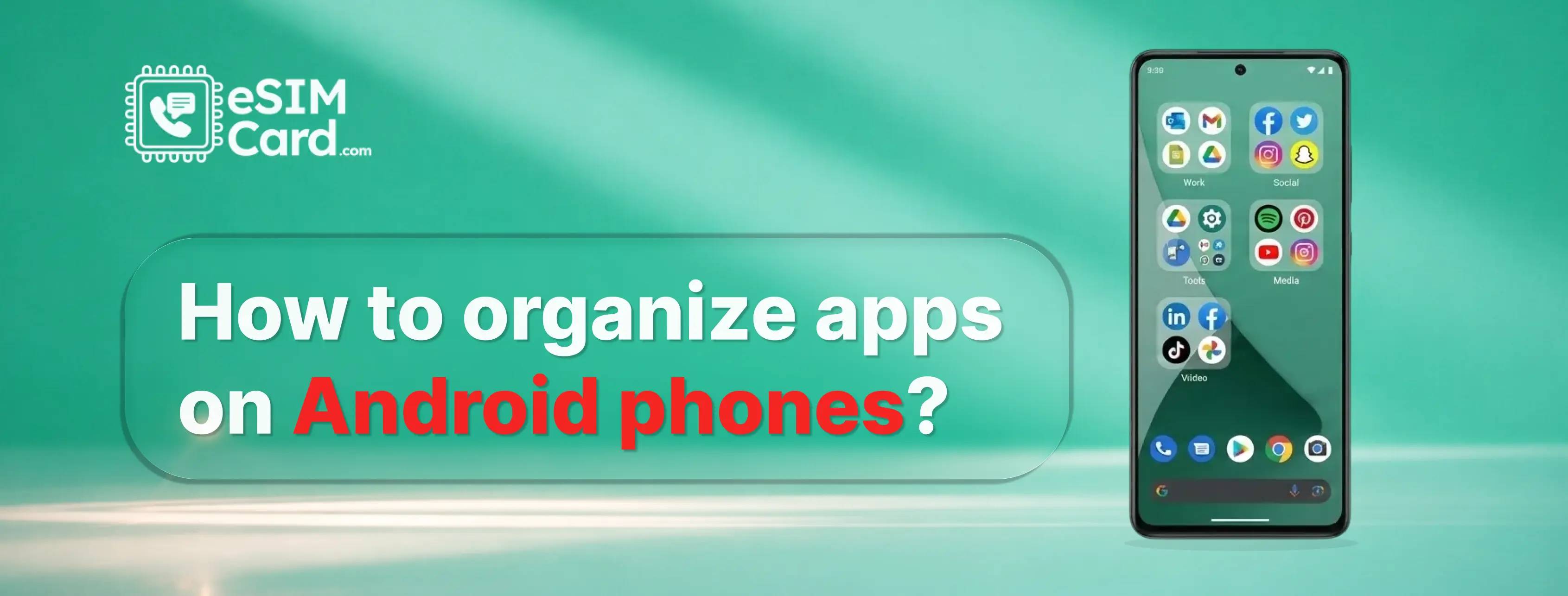
You can organize apps on Android phones by cleaning up your home screen, grouping apps you use together, and relying on search instead of scrolling. Start by keeping only your most-used apps on the home screen. Move everything else into folders or the app drawer.
Every Android user notices that there is a plethora of apps downloaded on their phone. When you have so much app traffic, your data is at risk, your battery is draining fast, and your device lags due to RAM engagement. For travelers or heavy users, understanding how eSIM data plans work also helps you avoid wasted data and unnecessary background usage.
The result is stress, not working efficiently, and a data-draining phone for you. But there is a solution called organizing apps. So, how to organise apps on Android phones and what will it bring positive change for you? Learn everything from this blog!
4.9

Highly Rated
Based on 500,000+ customer reviews

Trusted worldwide
Over 1 million travelers across the globe have trusted us

Travel Friendly
No swaps, global connectivity ensured
Why App Organization Matters on Android
Most people don’t realize how much time they lose just looking for apps. You unlock your phone, scan the screen, swipe twice, scroll, and only then find what you need. That friction adds up every single day.
Android gives you a lot of freedom, which is excellent. But without structure, that freedom turns into clutter. Apps pile up, folders stop making sense, and the home screen becomes noisy instead of useful.
A clean app setup changes how your phone feels. You stop opening apps out of habit and start using them with purpose.
Once apps are correctly organized, Navigation improves, and performance becomes faster. Even battery and performance can feel better because you’re not constantly bouncing between screens.
So, you need to follow some steps to organise your apps in such a way that your phone performs and stays under your control.
Start With the Home Screen
The home screen is where most app chaos begins. If everything lives there, nothing stands out. The goal is not to fill space but to make access faster.
Start by removing every app you don’t use daily from the home screen. Keep only essentials like calls, messages, maps, camera, and one or two tools of your daily routine. When fewer icons compete for attention, your brain processes choices faster.
Leaving empty space is not a mistake. It’s a feature. White space helps you find apps quickly and reduces the urge to open something just because it’s there. A clean home screen also makes your phone feel calmer, even before you tap anything.
Use the app drawer for everything else. Android is designed for this. Your home screen should guide your day, not overwhelm it.
How to Create App Folders
Folders are useful only when they reflect how you use your phone. Most people create folders like “Social,” “Tools,” or “Games,” then forget what’s inside. That’s why folders often fail.
Instead, group apps by purpose. Think in terms of actions. For example:
- “Daily” for apps you open every day
- “Travel” for maps, ride apps, tickets, and bookings
- “Work” for email, documents, and messaging
- “Finance” for banking and payments
To create a folder, simply drag one app onto another. Rename it immediately using clear, simple words. Avoid vague names. The faster your brain understands the folder, the faster you find the app.
Limit each folder to a small number of apps. Overloaded folders recreate the same problem you were trying to fix. A good folder saves time. A bad one adds friction.
When folders match your habits, organizing apps stops feeling like work and starts feeling natural.
Organize Apps by Daily Use, Not App Type
When you unlock your phone, you’re not thinking in categories. You’re thinking in tasks. A more effective way to organize apps on Android is to group them by how you use them during the day.
Try habit-based folders instead:
- Daily: Messages, browser, maps, banking
- Work: Email, calendar, documents
- Travel: Maps, ride apps, bookings, and the eSIMCard app for managing your travel data plans.
- Occasional: Utilities, editing tools, settings
This method works because your brain remembers when you use apps, not what type they are. Travel apps stay together. Work apps stay quiet when you’re off. Everything feels easier to reach.
Best practices that actually help:
- Keep frequently used apps at the top of each folder
- Limit folders to 6 to 8 apps max
- Rename folders using actions, not generic labels
If you travel often, keeping connectivity tools like eSIMCard App inside a dedicated Travel folder makes sense. You know exactly where to go when you need data, maps, or tickets without cluttering your home screen. The result is a phone that supports your routine instead of interrupting it.
Faster Ways to Find Any App on Android
Even with good organization, scrolling through screens is still slow. Android already includes faster ways to find any app. You just need to use them properly.
The quickest options:
- App drawer search: Swipe up and type the app name. This is faster than tapping through folders.
- Alphabetical sorting: A predictable app drawer beats endless icon pages.
- Pinned dock apps: Keep your top 4 to 5 apps in the dock so they’re always one tap away.
This approach lets you keep your home screen minimal without losing access. You don’t need every app visible to use your phone efficiently.
For travelers using eSIMCard, this setup is handy. Your data connection works in the background, You can also learn how to use eSIM when traveling anywhere in the world so connectivity stays smooth while your home screen stays clean. while maps, bookings, and travel tools stay easy to access without turning your phone into a cluttered dashboard.
Why this works:
- Less scrolling means less friction
- Predictable access reduces screen time
- Your phone feels lighter and faster
Instead of organizing for looks, you’re organizing for speed. That’s what keeps an Android phone clean, practical, and fast.
Reduce Clutter Without Deleting Apps
Deleting apps might feel like a solution, but it is not. Most people reinstall the same apps within days. A better approach is to remove visibility by organizing your apps.
Android gives you simple ways to keep apps without letting them take over your screen.
What works better than deleting:
- Move rarely used apps off the home screen
- Hide apps you don’t need daily
- Keep only essentials visible
This keeps your phone flexible while staying clean. You’re not fighting habits. You’re designing around them.
For example, travel tools or data utilities like the eSIMCard app don’t need to sit front and center all the time. They can live in a folder or app drawer until you need them. When you do, they’re there. When you don’t, they’re out of sight.
A clutter-free phone is less distracting, easier to navigate, and faster to use, without the frustration of constant reinstalling.
Why a Clean Android Setup Works Better With eSIM
A simple phone setup works best when everything is flexible, including connectivity. That’s where eSIM fits naturally into a clean Android experience.
With an eSIM, you don’t need:
- Physical SIM swapping
- Extra setup steps
- Carrier apps cluttering your phone
This matters if you’re trying to keep your device organized and distraction-free, especially when traveling.
Using eSIMCard for global, regional, or local travel eSIMs means connectivity stays in the background. Your phone remains clean. Data works when needed, without adding visual or mental clutter. It supports the same idea as app organization: use only what matters, when it matters.
For minimal users and frequent travelers, this creates a smoother, calmer phone experience.
One-Minute App Organization Checklist
Before you stop reading, take one minute and check these:
- Keep only essential apps on your home screen
- Group apps by daily use, not category
- Use the app drawer search instead of scrolling
- Hide apps you don’t use weekly
- Keep travel tools like eSIMCard app accessible, not visible
- If your phone feels easier after this, you’re doing it right.
An organized Android configuration is not about achieving perfection; instead, it emphasizes clarity. When your device ceases to require constant attention, it begins to aid your daily activities.
FAQs
Is there an easy way to organize apps on Android?
Yes. The easiest way to organize apps on Android is to clean your home screen first, keep only daily apps visible, and use folders or the app drawer for everything else. You don’t need extra apps or complex settings. Removing clutter and relying on search instead of scrolling is usually enough to make your phone feel faster and calmer.
How do I quickly organize my Android home screen?
To quickly organize your Android home screen:
- Remove all non-essential apps from the home screen
- Keep only calls, messages, maps, and daily tools
- Leave empty space between icons
- Use the app drawer for the rest
This takes under five minutes and instantly reduces visual noise, making apps easier to find.
Can Android automatically arrange apps or icons?
Partially. Android can align icons to a grid and sort apps alphabetically in the app drawer, but it cannot fully auto-organize apps by usage or purpose. Manual organization works better because it reflects how you actually use your phone, not just where apps are installed.
How do I declutter apps on Android without deleting them?
You can declutter Android apps without deleting them by:
- Moving rarely used apps to the app drawer
- Hiding apps you don’t need daily
- Grouping apps by routine instead of category
This keeps your phone flexible while reducing distraction. Apps stay installed, but they stop demanding attention.
What is the easiest way to tidy up apps on a Samsung phone?
On Samsung phones, the easiest way to tidy up apps is to:
- Use the app drawer instead of multiple home screens
- Enable grid alignment for icons
- Create simple, habit-based folders
Samsung’s One UI is designed for minimal setups when you avoid overloading the home screen.
What is the fastest way to find any app on Android?
The fastest way to find any app on Android is to use the app drawer search. Swipe up, type the app name, and open it directly. This is faster than scrolling through folders and allows you to keep your home screen clean and minimal.
Does organizing apps actually improve phone performance?
Yes, indirectly. Organizing apps reduces unnecessary screen switching, lowers background app usage, and helps you avoid opening apps out of habit. While it doesn’t increase hardware power, it makes your phone feel faster, smoother, and easier to use.