
Emma Sky
19 Sept 2026
How to Get an eSIM QR Code and Activate It
Bought an eSIM and can't find the QR code? Start with your order email, provider account, or app. That's usually where you'll find it.
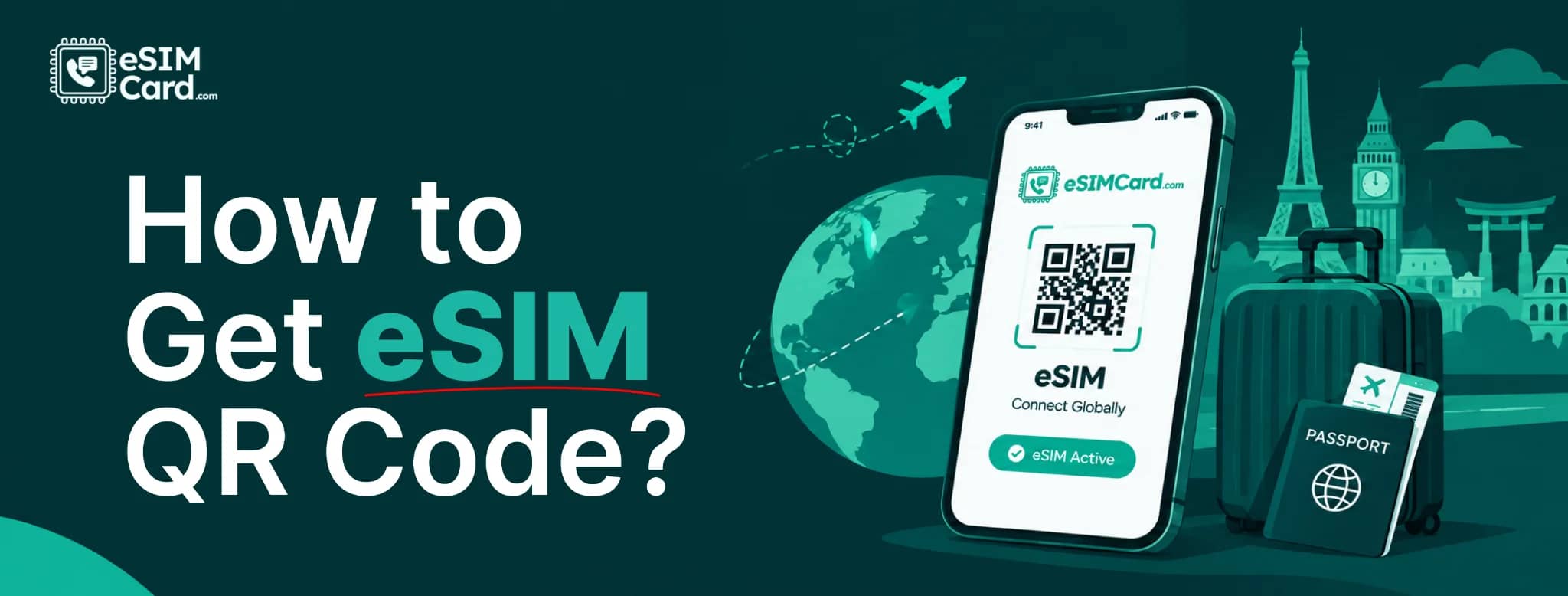
The QR code contains the information your phone needs to add the eSIM. You don't have to make the code yourself. Your mobile carrier or eSIM provider supplies it when you buy a plan.
If you've bought a plan from eSIMCard, sign in and look under My eSIMs for your eSIM details.
Before you scan anything, check two things: your phone needs to support eSIM, and it should be unlocked. You'll also need an internet connection during setup.
No luck scanning the code? That's not always a problem. Many eSIMs can also be added manually.
In this guide, you'll learn how to get an eSIM QR code, find it after purchase, check device compatibility, install it on iPhone or Android, use manual activation, and fix common QR code errors.
4.9

Highly Rated
Based on 500,000+ customer reviews

Trusted worldwide
Over 1 million travelers across the globe have trusted us

Travel Friendly
No swaps, global connectivity ensured
What Is an eSIM QR Code?
An eSIM QR code is a quick way to add an eSIM profile to your phone.
It may look like the QR codes you see on menus, tickets, or payment screens, but it does something different.
When you scan it from your phone's eSIM settings, the device reads the information it needs to find and download your mobile profile.
Part of that process may involve an SM-DP+ server. This is where the profile is held until your phone downloads it.
So, the QR code isn't actually the eSIM. It's better to think of it as the information your phone uses to get the eSIM onto the device.
After installation, the new line should appear in your SIM or mobile network settings.
If you're new to this technology, learn what an eSIM is before installing your first digital SIM.
How to Get an eSIM QR Code
In most cases, getting the QR code is the easy part. Buy an eSIM plan, and the provider gives you the information needed to install it.
You can purchase a travel eSIM from eSIMCard and receive your installation details after completing your order.
Here's what you'll normally do:
- Check whether your phone supports eSIM.
- Make sure it isn't locked to another carrier.
- Choose the country or region you're travelling to.
- Pick the data plan you need.
- Pay for the plan.
- Open the QR code or installation details from the provider.
- Add the eSIM to your phone.
Where the code appears depends on the provider. You might get it by email, see it in your account, or find it in the provider's app.
Don't worry if you haven't been asked for an IMEI. Some carriers ask for an IMEI, EID, or other device information before issuing an eSIM, while many travel eSIM providers don't.
Only provide those details when your provider asks for them.
Where Can I Find My eSIMCard QR Code?
If you've already bought an eSIMCard plan, sign in to your account and open My eSIMs. Your purchased eSIM information should be available there.
It's a good idea to find these details before leaving home. Trying to locate an order email while you're standing in an airport with poor Wi-Fi isn't much fun.
Depending on your eSIM and the available setup method, you may see a QR code or details for manual installation.
If the QR code isn't where you expected, don't buy another plan yet. Check the account and order details first.
Check Whether Your Phone Supports eSIM
Before buying or scanning a QR code, make sure the phone can actually use an eSIM.
Compatibility isn't the only thing to check. A phone that's locked to another carrier can also cause problems when you try to add a travel eSIM.
How to check eSIM support on iPhone
- Open: Settings > Cellular or Mobile Data
- Look for Add eSIM.
- You can also check whether the iPhone is locked: Settings > General > About.
- Scroll down to Carrier Lock. An unlocked phone may show No SIM restrictions.
- There's another quick check. Dial: *#06#
- Look for an EID in the information that appears. If your phone has an EID, that's generally a good sign that it has eSIM hardware.
- Still not sure? Check your exact model against an up-to-date list of eSIM-compatible phones.
Check Apple’s official article on how to set up eSIM on Iphone.
How to check eSIM support on Android
Android is a little less predictable because menu names vary between brands and software versions.
- On many Samsung Galaxy phones, you'll find the option here: Settings > Connections > SIM Manager > Add eSIM
- On a Google Pixel, the path may look like: Settings > Network & Internet > SIMs > Add SIM.
- You can also dial *#06# and look for an EID.
If the menu on your phone looks different, don't assume eSIM isn't supported. Check the exact model because manufacturers sometimes move these settings after software updates.
How to Scan an eSIM QR Code
Have an internet connection ready before you start. Your phone needs to download the eSIM profile during installation.
If possible, display the QR code on another screen. A laptop or tablet is ideal because you can keep the code open while working through the settings on your phone.
The exact steps depend on whether you're using an iPhone or Android.
How to scan an eSIM QR code on iPhone
On a recent iPhone, open: Settings > Cellular or Mobile Data > Add eSIM > Use QR Code
For a complete walkthrough, follow our iPhone eSIM activation guide.
Now point the camera at the QR code. Once the phone reads it, follow the instructions on the screen to add the eSIM.
When installation finishes, the new line should appear with your other cellular plans. Give it a name you'll recognize.
Travel, UAE, or Europe is more useful than trying to remember which line is Secondary. When you're ready to use the plan, select that eSIM for cellular data.
There's no need to restart your iPhone every time you install an eSIM. If the line doesn't connect when it should, restarting the phone is one thing you can try.
How to Scan an eSIM QR Code on Android
Android setup depends on the phone you're holding.
On many Samsung Galaxy devices, go to:
- Settings > Connections > SIM Manager > Add eSIM
- Choose the QR code option and scan the code supplied by your provider.
- For many Google Pixel phones, start here:
- Settings > Network & Internet > SIMs > Add SIM
Follow the instructions that appear on the phone. Your menu may use slightly different wording. That's normal.
Android settings change between manufacturers, models, regions, and software versions. After installation, give the new eSIM a clear name and select it for mobile data when you need it.
Some travel eSIMs also require data roaming to be turned on for that line. Follow the instructions that came with your particular plan.
Can You Install an eSIM Without a QR Code?
Yes. You may be able to install an eSIM without scanning a QR code.
This is useful when the code won't scan or you're viewing it on the same phone you want to set up.
Manual installation normally requires an SM-DP+ address and an activation code supplied by the provider. You may also be given a confirmation code.
Some providers have another option: installation through their app or a supported direct setup process.
Use the details that came with your eSIM. An SM-DP+ address isn't something you should guess or copy from another plan.
What If the QR Code Is on the Same Phone?
Here's an awkward situation: the QR code arrives on your phone, but you're told to scan it with that phone.
The easiest answer is to put the code on another screen. Open it on a laptop, tablet, or another phone and scan it from there.
Printing it also works if that's more convenient. No second screen? Look for manual installation information from your provider. If you have an SM-DP+ address and activation code, you may not need to scan anything.
Some devices can also read a QR code from an image saved on the phone. Others can't. The option depends on your phone and software version, so don't rely on it being available.
Can You Use an eSIM QR Code More Than Once?
Usually, you shouldn't expect an eSIM QR code to work for multiple installations.
Many providers issue QR codes for a single profile download. Once that profile has been added to a phone, trying the code elsewhere may produce an "already used" or similar message.
The exact rule isn't the same for every provider. This is why you shouldn't share the QR code with anyone.
You should also be careful before deleting an eSIM that you still need. Deleting the profile doesn't necessarily reset the QR code.
If you need to reinstall the eSIM or move it to another phone, check your provider's instructions first. You may need fresh activation details.
Does an eSIM QR Code Expire?
It can, but there isn't one expiry period that applies to every eSIM QR code.
A provider may give you a set amount of time to install the profile. A code may also stop working after it has already been used.
One thing is easy to confuse here: the life of the QR code and the validity of your data package are not necessarily the same.
You could have a deadline for installing the eSIM while the actual data plan follows a different start date or validity period. When in doubt, check the information that came with your purchase.
Is Installing an eSIM the Same as Activating It?
Not always. Installing the eSIM means adding its profile to your phone. Activation refers to when the plan becomes ready for use under the provider's rules.
Here's how the process fits together:
This distinction matters when you're preparing for a trip. Say you're flying on Friday and install the eSIM at home on Monday.
Whether the plan starts on Monday, when you arrive, or when it first connects depends on the plan you've bought.
Check the activation rules before your trip rather than assuming every eSIM works the same way.
Why Isn't My eSIM QR Code Working?
First, look at the error on your phone. It can tell you a lot. A QR code that won't scan isn't the same problem as a code marked already used.
Likewise, an installed eSIM with no mobile data needs a different fix.
If you get an already used message, check your phone's SIM settings before doing anything else. The profile may already be installed.
Still stuck? Contact the provider and include the exact error shown on the screen. That's more useful than simply saying the eSIM doesn't work.
Don't Share Your eSIM QR Code
Your eSIM QR code isn't something to post online.
Keep screenshots away from social media, public forums, or random QR-code websites. The code contains information used during the eSIM setup process.
Only use activation information that came from your carrier or eSIM provider. You should also be cautious with sites that claim they can make a working carrier eSIM QR code for you.
An ordinary QR-code generator can't create a genuine mobile-network profile. Keep your order details somewhere safe after setup. They may come in handy if you need support later.
How to Get an eSIM QR Code From eSIMCard
If you're travelling abroad, you can buy your eSIM before the trip instead of looking for a local SIM after landing.
Choose your destination, such as a USA eSIM, on eSIMCard, pick a suitable data plan, and complete the purchase. Then sign in to your account and check My eSIMs for the eSIM details.
If possible, sort out the installation while you still have dependable Wi-Fi.
You can keep your normal SIM in the phone alongside the travel eSIM on supported devices. Just check which line is selected for mobile data.
That helps prevent your home SIM from using roaming data by mistake.
Conclusion
Finding out your QR code won't scan is much easier to deal with at home than after landing in another country.
Check your phone first, find your eSIM details, and read the activation rules before you travel.
If you can install the profile without starting the plan early, doing the setup on reliable Wi-Fi can save time later.
For a purchase, keep My eSIMs handy so you can find your plan details when you need them.
FAQs
How do I get an eSIM QR code?
Buy a compatible eSIM plan from a carrier or travel eSIM provider. The provider will then make the setup information available through its account, app, email, or another supported method.
Where can I find my eSIM QR code after purchase?
Start with your provider account, order email, or app. eSIMCard customers can check their purchased eSIM information under My eSIMs.
Can I use an eSIM QR code more than once?
Many QR codes are meant for one profile installation. Reinstallation and transfer rules differ between providers, so check before deleting or moving an eSIM.
Can I scan an eSIM QR code from the same phone?
Not with the camera in the usual way. Open the QR code on another screen, use manual installation, or check whether your phone supports importing it from an image.
Do I need Wi-Fi to install an eSIM?
You need an internet connection while the eSIM profile downloads. Wi-Fi is often the easiest option, although another working connection may be enough on supported devices.
What is an SM-DP+ address?
An SM-DP+ address points your phone to the server holding the eSIM profile. You may receive one from your provider when manual installation is available.
Why does my eSIM QR code say it has already been used?
The eSIM profile may already be installed on a device. Check your SIM settings first. If the profile isn't there, contact the provider for help.
Does an eSIM QR code expire?
Some do. Expiry and installation windows are set by the provider and can be different from the validity period of the data package.
Is an eSIM QR code safe?
A QR code issued by a legitimate carrier or eSIM provider is generally safe to use. Keep it private because it contains information used to install your eSIM.
What happens if I delete my eSIM?
You may not be able to reinstall it with the original QR code. Check your provider's reinstallation policy before deleting a profile you still plan to use.