Search

Ava Brooks
02 Feb 2026
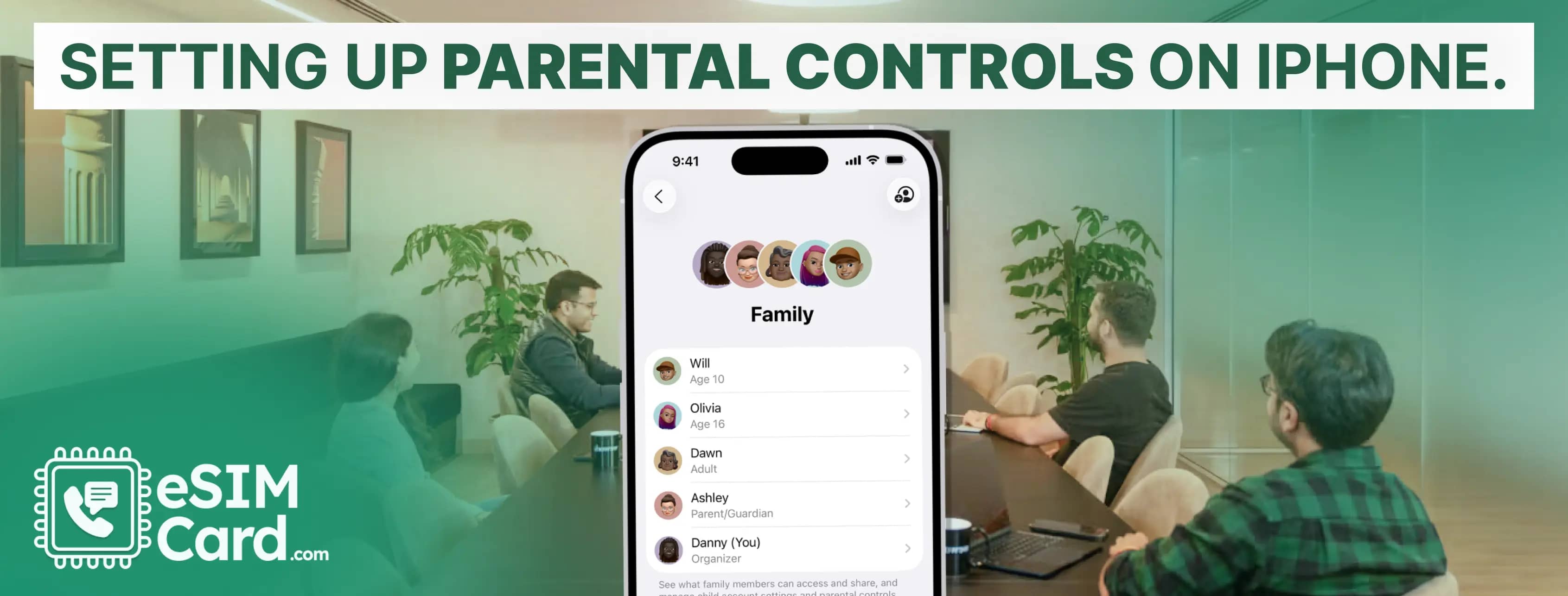
When a child gets an iPhone, parents are generally worried about the screen time, inappropriate content, and unauthorised purchases. To set up the paternal control, Apple offers the built-in Screen Time features, it helps you control your child's app usage and website access.
In this guide, I will explain the methods to set up parental control on an iPhone. For those using other Apple ecosystem devices, you might also want to learn how to setup eSIM on Apple Watch to keep your child connected safely. Moreover, you can restrict the child's iPhone and block unwanted apps.
4.9

Highly Rated
Based on 500,000+ customer reviews

Trusted worldwide
Over 1 million travelers across the globe have trusted us

Travel Friendly
No swaps, global connectivity ensured
Apple offers the free Screen Control with robust parental features. These features let you manage the screen of your child’s phone. Similarly, you can set the schedule downtime, set app limits, restrict content, and limit communication.
The latest iPhone lets you set up alerts for inappropriate content in photos and videos.
The following are the steps you can follow to enable parental control on your child's iPhone.
Here is how you can restrict your kid’s iPhone.
Selecting your child’s phone will unlock the parental features in the settings.
Setting the passcode prevents your kid from changing the restriction on the phone.
Setting downtime blocks the apps during set times like bedtime, homework and dinner. Here is how you can set the downtime to block apps.
During downtime, only Phone and messages will remain accessible. All other apps, like social media and gaming apps, will require your passcode to use.
You can set app limits on how long your kid can use a single app each day. Here are the steps you can follow to do that.
While using the iPhone, your child receives a warning before the time ends. If the time exceeds, the app greys out.
For parental control, you can manage the communication of your kid, whether using the Phone app, Facetime or Messages.
Whether you set the phone usage control, emergency calls always work.
Apple generally blocks known adult sites. But you can set the age-appropriate content and filter the websites.
eSIM technology is the most significant vulnerability in iPhone parental controls. Tech-savvy teens try to bypass the Screen Time restriction by adding the new eSIM cellular plan. This method creates a fresh profile that has no parental restrictions.
An eSIM card is a digital SIM integrated into the latest iPhones. The iPhone XS and newer models allow adding digital cellular plans without a physical SIM.
It is a travel-friendly SIM that helps users enjoy a flexible network connection without data roaming charges. Selecting a reliable eSIM carrier like eSIMCard lets you enjoy the connectivity seamlessly.
When a teens add the new eSIM in an iPhone from the other carrier, it removes the app limitations, Downtime schedules, and content restrictions. The perfect solution to avoid this situation is to block the eSIM workaround.
These settings prevent your child from adding new eSIM plans. It will prevent removing existing plans or switching between carriers.
While setting up the parental control on an iPhone, you may encounter issues, like forget passcode, or the restriction failed. In such a case, you can go through the given troubleshooting. In some cases, if you notice your cellular data or eSIM not working properly after setting restrictions, you should verify your network settings.
Here are the practices you should follow for iPhone parental control.
Setting up parental control on an iPhone helps to restrict screen time, inappropriate content, and unauthorised purchases. It just takes 10 to 15 minutes to set this layer of protection. In the article, I have discussed the different methods to monitor your kid’s phone activity remotely.
You can use the iPhone in-build features such as enabling screen time, setting the passcode, setting downtime to block apps and limiting communication. If you encounter any issues, follow the troubleshooting steps.
Yes, you can set the Screen Time or the Family Sharing to manage restrictions remotely. However, the ideal way is to have a conversation with your kid about the device rules for trust building.
Open the Settings app and navigate to ScreenTime. Enter your Passcode and tap Content & Privacy Restrictions. Now move to iTunes & App Store Purchases and Deleting Apps. Select the Don't Allow option to stop the app from deleting.
You can use the Family Sharing feature to monitor your kid’s phone activity. Open Settings, click your name and then Family Sharing. Now add the family member and enable the ScreenTime.
4.9

Highly Rated
Based on 500,000+ customer reviews

Trusted worldwide
Over 1 million travelers across the globe have trusted us

Travel Friendly
No swaps, global connectivity ensured
With eSIM Card, you can save 100% on roaming fees