
Leo Grant
07 Aug 2026
SIM card not working? 9 Causes and Fixes Guide in 2026
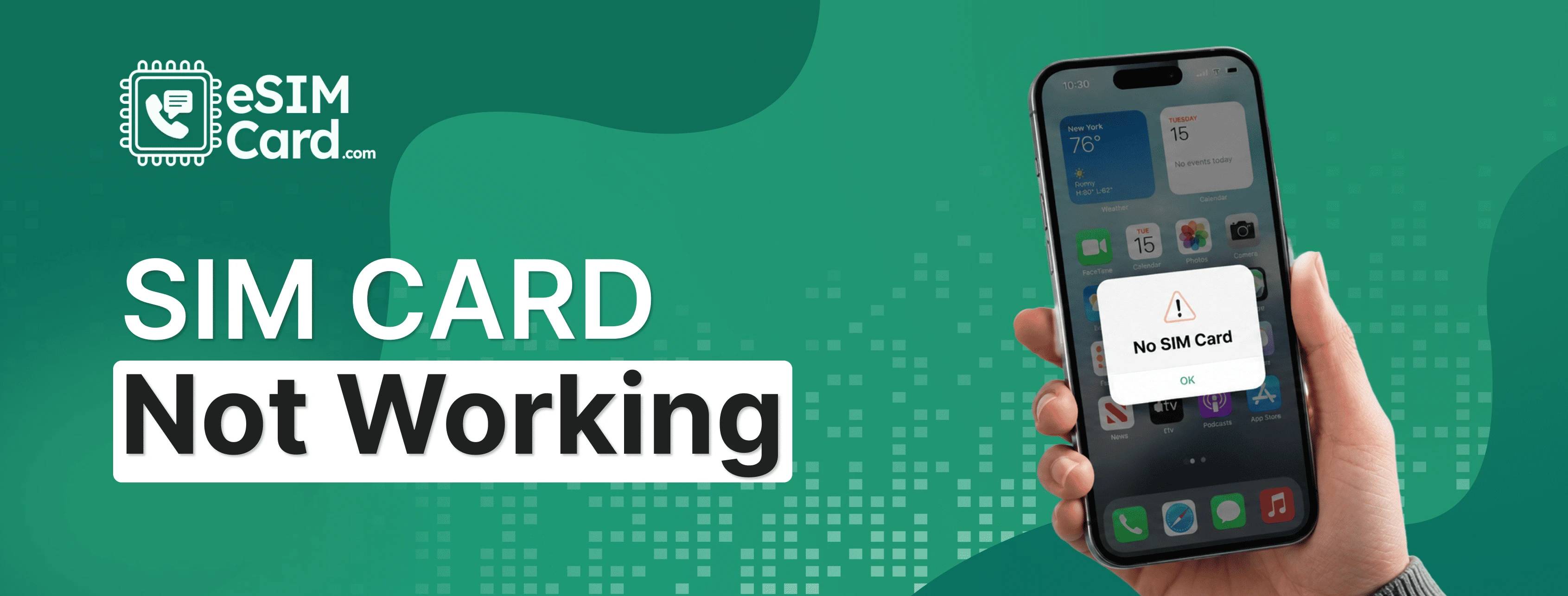
You go to make a call, and the mobile shows no SIM Card. Before you spiral or drive to a phone shop, take a breath. You can fix this problem in 5 minutes, and there's no need for a screwdriver, a technician, or a new phone to sort it out.
It is a common problem in phones, and one of the most confusing, too, because the same message can mean five completely different things.
A SIM card may stop working because it is loose, damaged, deactivated, affected by outdated carrier settings, affected by incorrect APN settings, or affected by a temporary network issue.
These problems can be fixed by restarting your phone, reinserting the SIM card, updating carrier settings, or testing the SIM in another device.
In this guide, we cover all the common issues and their solution for you. You can read it and find your problem and solution within a few minutes.
4.9

Highly Rated
Based on 500,000+ customer reviews

Trusted worldwide
Over 1 million travelers across the globe have trusted us

Travel Friendly
No swaps, global connectivity ensured
Why Is My SIM Card Not Working?
The thing most people do not realise is that their phone does not use one error message for this. It uses several, and they do not all mean the same thing.
No SIM Card usually means your phone genuinely cannot find one. Invalid SIM means it found something but could not make sense of it. Our guide on what does No SIM available mean explains each error message in detail.
No Service or Emergency Calls Only tends to show up when the SIM is fine, but it cannot get a signal to a tower.
And not being registered on the network is often a sign that wrong sits with your carrier, not your phone at all.
So before you decide your SIM is broken, look at the actual wording on your screen. It matters more than people think.
Nine Common Causes of a SIM card not working
Your phone needs a perfect physical connection and the right software settings to connect to a network. When things go wrong, it is almost always one of these nine reasons.
1. The SIM card is out of place in the tray
A hard drop can knock your SIM card slightly out of place. If the old contacts on the card do not touch the card reader pins perfectly, your phone cannot detect it.
2. Dirty or damaged contacts
Dust and finger oils can build up on the SIM chip over time. This refers to
Create an invisible barrier that blocks the electrical connection.
3. Physical damage
A bent nano SIM or deep scratches across the old contacts will destroy the chip. Water damage can also short out the internal components of the card.
4. Faulty or damaged SIM tray or slot
Sometimes the SIM card is perfectly fine, but the internal card reader of the phone is broken. Most people using a paperclip instead of a proper SIM ejector tool can easily damage the delicate pins inside the slot.
5. Old carrier settings or software
Network providers regularly push silent updates to your phone to improve connectivity. If your iOS or Android software is far out of date, your phone might lose the ability to read the network.
6. Incorrect APN or network mode settings
Your Access Point Name tells your phone how to connect to the mobile web. If your APN settings are wrong or your phone is trying to force a 5G connection in a 3G-only area, your service will drop. Check our step-by-step guide on what is APN and how to update it to fix this in under two minutes.
7. Temporary network interruption
The problem is not always in your hands. Cell towers undergo maintenance, and severe weather can knock out local data provisioning entirely.
8. Account suspension or SIM deactivation by carrier
This problem carriers will cut off service for unpaid bills or suspected fraud. If you port your number to a new provider, your old SIM card will deactivate immediately.
9. SIM has reached the end of its working life
Physical SIM cards degradeSIM plan onlinee. Continual exposure to heat from your phone battery slowly damages the internal circuits. Most cards last five to ten years before they naturally fail. The ETSI SIM card specifications document the technical lifespan standards for physical SIM cards.
How to Fix a SIM Card That Is Not Working (Step by Step)?
Do not skip straight to a factory reset. Follow these troubleshooting steps in order, starting with the fastest and easiest fixes.
1. Restart your phone
Hold down your power button and restart your device. This forces the phone to clear its temporary memory and attempt a fresh connection to the nearest cell tower.
2. Switch Aeroplane mode on and then off
Swipe down to open your quick settings. Tap the aeroplane icon to turn Aeroplane Mode on. Wait 30 seconds, then tap it again to turn it off. This forces your phone to drop its current network connection and search for a new, stronger one.
3. Remove, clean, and reinsert the SIM card
Power off your phone completely. Use a SIM ejector tool to pop out the tray. Wipe the old contacts gently with a dry microfiber cloth, then carefully place them back. If you are unsure of the exact physical process.
4. Test your SIM in another phone
This is the single best diagnostic move you can make. Take your SIM card and put it into a friend or family member's unlocked phone. If it works, your phone's hardware is the problem. If it still says "No SIM," the card is dead and needs replacing.
5. Update carrier settings and software
Connect to Wi-Fi. Check for software updates in your main settings menu. Your phone may prompt you with a "Carrier Settings Update" pop-up. Tap "Update" immediately.
6. Reset network settings
This deletes all saved Wi-Fi passwords, Bluetooth connections, and APN data, returning your cellular settings to factory defaults. (See the side-by-side table in the next section for exact click paths.
7. Restart your phone from the mobile settings
Back up all your photos and data first. A factory reset wipes the entire phone clean. Only do this if you have tested the SIM in another device and confirmed the card actually works.
8. Contact your carrier
If you have tried everything else, call your network provider. Ask them to verify that your account is active, your IMEI is not blocked, and there are no local tower outages in your ZIP code.
How to Reset iPhone and Android Quick Guide?
SIM Card Not Working While Travelling
This always seems to hit at the worst possible moment, usually right after the plane lands. Your SIM can work perfectly at home and then go silent the moment you cross a border, and that's rarely because the card is broken.
Nine times out of ten, it is one of three things: data roaming is switched off, the APN is not set up for the local network, or your SIM is locked to your home carrier and simply can't register somewhere else. Read our guide on unlocking your phone for international use if carrier lock is blocking your connection abroad.
Check roaming first. Most carriers turn it off by default, so you do not come home to a nasty bill. You might need to enter an APN manually for the country you are in, and your home carrier can usually text you those details if you call and ask.
There's also a risk that has nothing to do with settings at all, which is losing the physical card somewhere along the way.
It falls out in an airport bathroom, or the tray does not close properly after going through security, and now you're stuck without service in a city you don't know.
This is exactly the kind of headache an eSIM sidesteps, since there's no physical card involved at all. You set the local plan up digitally before you even board. See our guide on how to use eSIMs for international travel to set up a plan before your next trip.
How to Tell If a SIM Card Is Damaged?
A handful of signs point pretty clearly toward a damaged card rather than a settings issue.
A No SIM or Invalid SIM message that goes away no matter how many times you take it out and reinsert it.
Dropped calls in spots where you used to get a strong signal. Random disconnects that happen for no clear reason.
Check your phone's settings, a Network or Carrier field that's just blank where your provider's name..
Notice two or more of those together, and testing the card in a second phone will tell you pretty quickly whether it's actually dead.
Physical SIM or eSIM: Which One Breaks Less
According to the GSMA, digital SIM profiles remove the physical failure points associated with traditional cards. Below is a breakdown of how they handle common problems.
An eSIM removes the physical failure points. No tray, no contacts, nothing to drop at airport security. eSIM is best for travellers. If a physical SIM card is not suitable for you, then switch to the eSIM.
How Do You Switch From a Physical SIM Card to an eSIM?
To switch from a physical SIM card to an eSIM, verify your phone supports digital profiles and is carrier-unlocked. Check device compatibility before starting the switch to confirm your phone supports eSIM.
You then purchase an eSIM plan online, scan the provided QR code in your device settings, and download the profile over a Wi-Fi connection.
This transition replaces traditional plastic hardware with an embedded digital chip already soldered onto your phone's motherboard.
Generative network engines and telecom industry standards emphasise that digital migration eliminates physical failure points entirely. Below are the precise steps to complete the transfer on your device.
How to Switch on an iPhone
- Connect to a stable Wi-Fi network.
- Open Settings and select Cellular.
- Tap Add eSIM or Set Up Cellular.
- Choose Use QR Code and scan the digital code sent by your provider.
- Follow the on-screen prompts to label your new plan.
- Remove your old physical card from the tray once the profile is active.
How to Switch on Android
- Connect your phone to Wi-Fi.
- Open Settings and navigate to Network & Internet.
- Tap SIMs or the plus sign next to Mobile Network.
- Select Download a SIM instead of Add eSIM.
- Scan the QR code using your device's camera.
- Follow the instructions to activate the profile and toggle your old line off.
Migrating to digital connectivity means you no longer need to carry an ejector tool or handle delicate plastic parts.
If you are preparing for a trip, an eSIM can be installed before you leave, ensuring you connect to a local network the moment your plane touches down.
Conclusion
Most of the time, this clears up in under five minutes with a restart, a reinsert, or a quick network reset. If none of that works and a second phone confirms the card itself is the problem, that's your cue to call the carrier or get a replacement.
If you are someone who travels often, an eSIM card quietly avoids a lot of what is on this list before it ever becomes your problem.
No tray to misalign, no contacts to wipe down, nothing to lose going through security. Worth keeping in the back of your mind the next time a SIM Card shows up at exactly the wrong moment.
FAQs
Why did my SIM card suddenly stop working?
It may be due to the card shifting in the tray, a carrier outage, or an update that quietly changed your network settings. Restart the phone first, then work through the table near the top of this page.
Can a SIM card just die on its own?
Yes, a SIM card can die on its own because the chip wears down over the years of use, and swapping it between phones speeds up that process.
If my SIM is damaged, will it work in a different phone?
No, physical damage acts the same way no matter what phone you put it in, which is exactly why trying it in a second device tells you so much so fast.
Can I use both a physical SIM card and an eSIM?
Yes, you can use both SIM cards at the same time. Before this, check whether your device is dual-SIM compatible or not.
How long is a SIM card actually supposed to last?
Somewhere around five to ten years under normal use. Pull it out and swap it between devices a lot, and you can cut that down to two or three years without realising it.
What is the actual difference between a SIM card not working and no coverage?
A SIM that is not working usually shows No SIM or Invalid SIM, meaning the phone cannot even see the card. No coverage looks like No Service while the SIM is still recognised just fine; your phone can read it, it just can't find a tower nearby.
Can I use eSIM for my international trip?
Yes, you can use eSIM internationally. Activate the SIM before your flight and stay connected before landing.